
AI-Powered Image Format Conversion Guide: Complete Tutorial 2026
Master AI-driven image format conversion with our comprehensive guide. Learn techniques, tools, and best practices for optimal quality and efficiency in 2026.
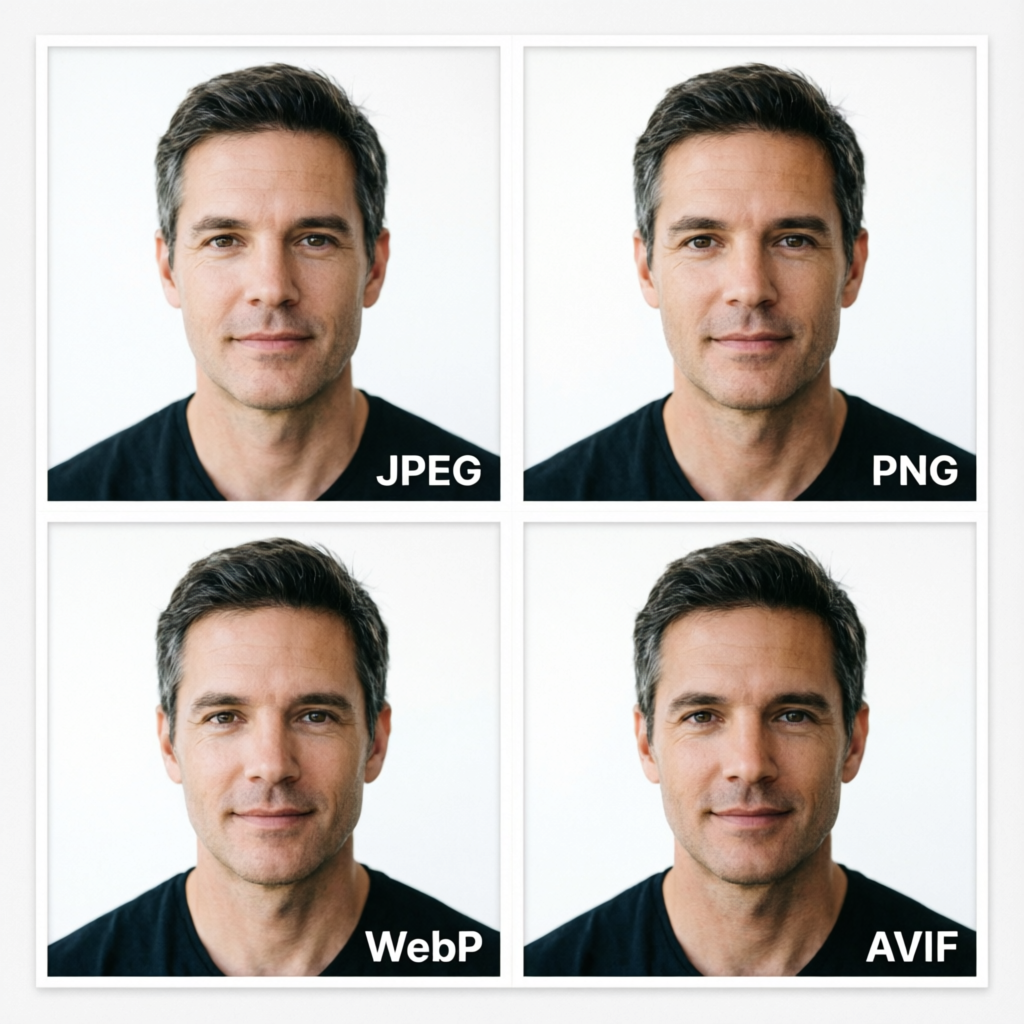
Image format conversion has become increasingly critical in our multi-platform digital world. Whether you're a web developer optimizing site performance, a photographer managing archives, or a content creator preparing assets for various platforms, choosing the right image format and conversion method can dramatically impact quality, file size, and compatibility.
Traditional format conversion tools often struggle with maintaining quality during the transformation process. Compression artifacts, color shifts, and detail loss have plagued image conversion for decades. Enter AI-powered format conversion - a revolutionary approach that uses machine learning to intelligently analyze, optimize, and transform images while preserving visual fidelity.
In this comprehensive guide, we'll explore how AI is transforming image format conversion, compare leading tools, walk through step-by-step conversion workflows, and share advanced techniques for achieving optimal results. Whether you're converting thousands of legacy photos or preparing a single hero image for your website, this tutorial will equip you with the knowledge and tools to make informed decisions.
Understanding Image Formats in 2026
Before diving into AI-powered conversion, let's establish a foundation by understanding the image format landscape and when to use each format.
Raster Formats
JPEG (Joint Photographic Experts Group)
- Best for: Photographs, complex images with gradients
- Compression: Lossy
- Color depth: 24-bit (16.7 million colors)
- Transparency: No
- Animation: No
- Average use case: Website photos, social media images, email attachments
PNG (Portable Network Graphics)
- Best for: Graphics with transparency, logos, screenshots
- Compression: Lossless
- Color depth: Up to 48-bit
- Transparency: Yes (alpha channel)
- Animation: No (APNG variant supports it)
- Average use case: UI elements, logos, images requiring transparency
WebP
- Best for: Web optimization (modern browsers)
- Compression: Both lossy and lossless
- Color depth: 24-bit
- Transparency: Yes
- Animation: Yes
- Average use case: Modern websites prioritizing performance
AVIF (AV1 Image File Format)
- Best for: Next-generation web images
- Compression: Highly efficient lossy/lossless
- Color depth: Up to 12-bit HDR
- Transparency: Yes
- Animation: Yes
- Average use case: Cutting-edge web applications, high-quality web images
HEIF/HEIC (High Efficiency Image Format)
- Best for: Mobile photography, Apple ecosystem
- Compression: Highly efficient lossy
- Color depth: Up to 16-bit
- Transparency: Yes
- Animation: Yes (sequences)
- Average use case: iPhone photos, modern mobile devices
TIFF (Tagged Image File Format)
- Best for: Professional photography, archival, printing
- Compression: Lossless (or lossy options)
- Color depth: Up to 64-bit
- Transparency: Yes
- Animation: No
- Average use case: RAW photography workflow, print preparation, archival storage
Format Selection Decision Tree
When choosing an output format, consider these factors:
- Usage context: Web, print, archival, or sharing?
- Quality requirements: Can you tolerate lossy compression?
- Transparency needs: Do you need alpha channels?
- File size constraints: Are you optimizing for bandwidth?
- Compatibility requirements: What browsers/devices need to display it?
- Animation needs: Do you need motion or sequences?
Quick Decision Guide:
- Web photos → WebP (with JPEG fallback)
- Web graphics with transparency → WebP or PNG
- Print materials → TIFF or high-quality JPEG
- Archival storage → TIFF or PNG
- Social media → JPEG (platform-optimized sizes)
- Mobile apps → WebP or HEIF
- Next-gen web → AVIF (with WebP fallback)
How AI Enhances Format Conversion
Traditional image conversion tools perform pixel-by-pixel transformations using mathematical algorithms. While functional, they often introduce artifacts, lose subtle details, or fail to optimize for the target format's strengths.
AI-powered conversion tools leverage neural networks trained on millions of images to:
1. Intelligent Quality Preservation
AI models analyze image content to identify critical details - faces, text, edges, textures - and apply format-specific optimization strategies. For example, when converting from TIFF to JPEG, AI can:
- Allocate more bits to high-frequency details (edges, text)
- Apply subtle noise reduction only where imperceptible
- Preserve skin tones and facial features with higher fidelity
- Detect and protect important objects in the scene
2. Perceptual Optimization
Rather than using fixed compression ratios, AI evaluates perceptual quality metrics to determine optimal compression levels. This means:
- Smaller file sizes with equivalent perceived quality
- Content-aware compression (more compression in uniform areas, less in detailed regions)
- Color space optimization based on image content
- Psychovisual modeling to maximize efficiency
3. Format-Specific Enhancement
AI can apply format-appropriate enhancements during conversion:
- Converting to WebP: Optimize for browser rendering performance
- Converting to AVIF: Leverage advanced chroma subsampling
- Converting to PNG: Minimize palette size while maintaining quality
- Converting to JPEG: Apply smart quantization tables based on content
4. Batch Intelligence
When processing multiple images, AI systems can:
- Learn from previous conversions in the batch
- Apply consistent quality profiles across similar images
- Detect and flag problematic conversions
- Optimize processing order for efficiency
5. Defect Correction
During format conversion, AI can simultaneously:
- Remove compression artifacts from source images
- Correct color casts and exposure issues
- Sharpen details lost in previous conversions
- Upscale resolution intelligently when needed
Leading AI-Powered Conversion Tools in 2026
Let's compare the top AI-driven image format conversion tools available today.
Tool Comparison Matrix
| Tool | Formats Supported | AI Features | Batch Processing | API Access | Pricing |
|---|---|---|---|---|---|
| AImage | JPEG, PNG, WebP, AVIF, HEIF, TIFF | ✅ Quality optimization, perceptual compression | ✅ Unlimited | ✅ REST API | Free tier + Pro |
| Adobe Creative Cloud Express | JPEG, PNG, WebP, GIF | ✅ Adobe Sensei AI, auto-enhancement | ✅ Up to 1000 | ❌ No public API | Subscription $10/mo |
| Cloudinary | 20+ formats | ✅ Auto-format, quality analysis | ✅ Unlimited | ✅ Comprehensive API | Free tier + Pay-as-you-go |
| ImageOptim | JPEG, PNG, WebP, AVIF | ✅ ML-based compression | ✅ Local unlimited | ❌ No API | Free (Mac) |
| Squoosh | JPEG, PNG, WebP, AVIF | ✅ Advanced codecs, quality metrics | ❌ Single image only | ❌ No API | Free (web app) |
| TinyPNG/TinyJPG | JPEG, PNG, WebP | ✅ Smart lossy compression | ✅ Up to 500 | ✅ API available | Free tier + Pro |
| XnConvert | 500+ formats | ✅ Basic AI filters | ✅ Unlimited | ❌ No API | Free (desktop) |
Detailed Tool Reviews
AImage - Best Overall for AI-Powered Conversion
Strengths:
- Native support for modern formats (WebP, AVIF, HEIF)
- Advanced AI quality analysis and optimization
- Excellent batch processing with consistent results
- Comprehensive API for developers
- Free tier sufficient for most individual users
Best for: Web developers, content creators, photographers needing reliable bulk conversion
Example workflow: Upload RAW photos → Convert to WebP with AI optimization → Download optimized gallery
Cloudinary - Best for Developers and Enterprise
Strengths:
- Massive format support including video
- Powerful transformation pipelines
- CDN integration for automatic delivery optimization
- Sophisticated AI features (auto-format, auto-quality, smart cropping)
- Robust API with extensive documentation
Best for: Web applications, e-commerce platforms, media-heavy websites
Example workflow: Upload images via API → Apply transformation chains → Serve optimized formats based on browser support
ImageOptim - Best for Mac Users and Privacy
Strengths:
- Desktop application (no cloud upload required)
- Excellent compression algorithms
- Fast batch processing
- Open-source core components
- Complete privacy (all processing local)
Best for: Photographers, designers prioritizing privacy, Mac-based workflows
Example workflow: Drag folders into app → Automatically optimizes without format change → Save bandwidth when uploading
Squoosh - Best for Learning and Experimentation
Strengths:
- Real-time visual comparison
- Advanced codec settings exposed
- Educational tool showing how compression works
- Completely free and open-source
- Works offline as PWA
Best for: Learning about image formats, one-off conversions, visual quality assessment
Example workflow: Upload image → Try different formats/settings → Compare file sizes and visual quality → Download best option
Step-by-Step Conversion Workflows
Let's walk through practical conversion scenarios with detailed steps.
Workflow 1: Converting Legacy JPEG Archives to Modern WebP
Scenario: You have 5,000 JPEG photos from the past decade and want to modernize your archive, reduce storage costs, and improve web delivery speed.
Objective: Convert to WebP with AI optimization, maintaining archival-quality originals.
Steps using AImage:
-
Prepare your source files
- Organize JPEGs into logical folders (by year, event, etc.)
- Backup originals to separate storage
- Calculate total storage used (baseline for comparison)
-
Configure conversion settings
- Format: WebP (lossy)
- Quality: AI-optimized (let the tool analyze each image)
- Metadata: Preserve EXIF data
- Color profile: Maintain original (sRGB typically)
- Resize: None (maintain original dimensions)
-
Run batch conversion
- Upload folder structure to AImage
- Enable "AI Quality Optimization"
- Set output folder matching source structure
- Start batch process
-
Quality verification
- Randomly sample 50-100 images
- Compare originals to WebP conversions side-by-side
- Check critical images (family photos, important events)
- Verify EXIF data preservation
-
Storage analysis
- Calculate new total storage
- Typical savings: 60-80% reduction in file size
- Document compression ratio achieved
-
Archive management
- Keep original JPEGs in cold storage
- Use WebP versions for everyday access and web sharing
- Update photo management software to support WebP
Expected results:
- 70% average file size reduction
- Imperceptible quality difference
- Faster photo gallery loading
- Reduced cloud storage costs
Workflow 2: Preparing Website Images for Maximum Performance
Scenario: You're launching an e-commerce website with product photos that need to load fast while looking sharp on all devices.
Objective: Convert product photos to multiple formats (WebP, AVIF) with responsive sizes, while maintaining JPEG fallback.
Steps using Cloudinary API:
-
Define responsive breakpoints
- Mobile: 480px, 768px
- Tablet: 1024px
- Desktop: 1440px, 1920px
-
Create transformation pipeline
const transformations = { format: 'auto', // Auto-select best format per browser quality: 'auto:best', // AI-optimized quality fetch_format: 'auto', dpr: 'auto', // Device pixel ratio adaptation width: 'auto:breakpoints', crop: 'fill' }; -
Upload and transform
- Upload original high-res product photos
- Apply transformation pipeline
- Generate variants automatically
-
Implement responsive images in HTML
<picture> <source srcset="product.avif" type="image/avif"> <source srcset="product.webp" type="image/webp"> <img src="product.jpg" alt="Product"> </picture> -
Performance testing
- Test on various devices and browsers
- Measure Core Web Vitals (LCP, CLS, FID)
- Verify correct format delivery per browser
Expected results:
- 85% reduction in page weight
- Improved Core Web Vitals scores
- 40% faster page load times
- Better mobile experience
Workflow 3: Converting PNG Graphics to Optimized WebP
Scenario: Your design system contains hundreds of PNG icons and UI elements that could be optimized.
Objective: Convert to WebP while maintaining transparency and crispness.
Steps using ImageOptim + manual verification:
-
Categorize PNG files
- Icons (simple, limited colors)
- Illustrations (complex, many colors)
- Photos with transparency
- Screenshots
-
Batch convert with ImageOptim
- Drag PNG folder into ImageOptim
- Enable "Lossy minification" (for appropriate files)
- Process all files
- Save optimized PNGs
-
Selective WebP conversion
- Use AImage for complex illustrations and photos
- Choose lossless WebP for icons (better compression than PNG)
- Choose lossy WebP for photos (smaller than lossy PNG)
-
Quality control
- Check transparency preservation
- Verify sharp edges on icons
- Test on dark and light backgrounds
- Ensure no color banding
-
Update design system
- Replace PNG references with WebP
- Provide PNG fallbacks for older browsers
- Update documentation and asset library
Expected results:
- 60% reduction in icon file sizes
- Maintained visual quality
- Faster UI rendering
- Better user experience
Workflow 4: Creating Multi-Format Master Archives
Scenario: You're a professional photographer archiving work and need multiple format versions for different purposes.
Objective: From RAW files, create TIFF masters, print-ready JPEGs, web-optimized WebP, and social media variants.
Steps using XnConvert + AImage:
-
RAW to TIFF conversion (XnConvert)
- Input: RAW files (CR3, NEF, ARW, etc.)
- Output: 16-bit TIFF, Adobe RGB color space
- Settings: No compression, preserve all data
- Purpose: Archival master, future-proof
-
TIFF to print JPEG (XnConvert)
- Input: TIFF masters
- Output: JPEG, 300 DPI, Adobe RGB
- Quality: 95% (minimal compression)
- Purpose: Print labs, high-quality prints
-
TIFF to web WebP (AImage)
- Input: TIFF masters
- Output: WebP, sRGB color space
- Resize: 2048px longest edge
- AI optimization: Enabled
- Purpose: Portfolio website, client galleries
-
Create social media variants (AImage API)
- Instagram: 1080x1080px, JPEG, sRGB
- Facebook: 2048px wide, JPEG, sRGB
- Pinterest: 1000x1500px, WebP, sRGB
- Purpose: Social sharing, optimized per platform
-
Organize output
project-name/
  masters/ (TIFF)
  print/ (high-quality JPEG)
  web/ (WebP)
  social/
    instagram/
    facebook/
    pinterest/
Expected results:
- Complete multi-format archive
- Optimized deliverables for each use case
- Preservation of maximum quality in masters
- Efficient web delivery
Advanced Techniques and Optimization
Technique 1: Chroma Subsampling Optimization
When converting to lossy formats like JPEG, WebP, or AVIF, chroma subsampling reduces color information more than luminance (brightness) information. Human eyes are more sensitive to brightness changes than color changes, making this an efficient compression technique.
Best practices:
- 4:4:4 (no subsampling): Use for graphics with text, sharp color transitions, or when quality is paramount
- 4:2:2 (moderate subsampling): Good balance for most photographs
- 4:2:0 (aggressive subsampling): Acceptable for web delivery, social media, thumbnails
AI advantage: AI tools can analyze image content and automatically select optimal subsampling per image.
Technique 2: Progressive vs. Baseline JPEG
Baseline JPEG: Loads top-to-bottom Progressive JPEG: Loads in successive quality passes (blurry → sharp)
When to use progressive:
- Large images on web pages
- Images above the fold
- Improving perceived performance
- File size typically 5-10% smaller
When to use baseline:
- Thumbnails and small images
- Email attachments
- Compatibility with older systems
AI conversion tools can automatically choose the appropriate format based on image size and intended use.
Technique 3: Bit Depth Optimization
Not all images need 24-bit color. AI can analyze color complexity and optimize bit depth:
- Simple graphics: Reduce to 8-bit indexed color PNG
- Photographs: Maintain 24-bit or consider 16-bit WebP
- HDR images: Use 10-bit or 12-bit AVIF/HEIF
Savings: Reducing bit depth from 24-bit to 8-bit can reduce file size by 70% with no visible quality loss for appropriate images.
Technique 4: Metadata Stripping
Image metadata (EXIF, IPTC, XMP) adds file size without visual benefit for web delivery:
Types of metadata:
- Camera settings (shutter speed, aperture, ISO)
- Location data (GPS coordinates)
- Copyright information
- Edit history
Strategy:
- Strip for web delivery: Remove all metadata except copyright
- Preserve for archival: Keep all metadata in master files
- Selective removal: Remove location data for privacy while keeping copyright
AI tools can intelligently decide which metadata to preserve based on file purpose.
Technique 5: Content-Aware Cropping During Conversion
When converting images that need resizing for responsive web delivery, AI can:
- Detect important subjects (faces, objects)
- Intelligently crop to focal points
- Maintain aspect ratios appropriate for target platform
- Avoid cutting off critical elements
Example: Converting a 4000x3000px landscape photo to a 1080x1080px Instagram post - AI crops to the most interesting region rather than center-cropping or squashing the image.
Troubleshooting Common Conversion Issues
Issue 1: Color Shift After Conversion
Symptoms: Images look different (warmer, cooler, less vibrant) after conversion
Causes:
- Color profile mismatch (Adobe RGB → sRGB without proper conversion)
- Incorrect gamma settings
- Lack of color profile embedding
Solutions:
- Always specify output color profile explicitly (sRGB for web, Adobe RGB for print)
- Use AI tools that automatically handle color profile conversion
- Embed color profiles in output files
- Verify color accuracy on calibrated display
Issue 2: Transparency Loss or Artifacts
Symptoms: Transparent areas become white, jagged edges appear around transparency
Causes:
- Converting from transparency-supporting format (PNG) to non-supporting format (JPEG)
- Poor anti-aliasing during conversion
- Matting against wrong background color
Solutions:
- Choose formats that support transparency (PNG, WebP, AVIF)
- Use AI defringing to clean up edges
- If converting to JPEG, specify background color (white for light sites, appropriate color for design context)
- Use lossless conversion for graphics with transparency
Issue 3: Excessive File Size After Conversion
Symptoms: Output file larger than input despite compression
Causes:
- Upsampling during conversion
- Inefficient encoder settings
- Unoptimized metadata preservation
- Converting from lossy to lossless format
Solutions:
- Never upscale images unless intentionally enhancing resolution
- Use AI-optimized compression settings
- Strip unnecessary metadata
- Maintain lossy→lossy or lossless→lossless conversion paths when possible
Issue 4: Detail Loss in Text or Line Art
Symptoms: Blurry text, jagged lines, loss of sharp edges
Causes:
- Over-aggressive lossy compression
- Chroma subsampling inappropriate for content type
- Insufficient AI awareness of text regions
Solutions:
- Use lossless formats (PNG, WebP lossless) for text-heavy images
- Increase quality settings for screenshots and diagrams
- Use AI tools that detect and protect text regions
- Consider vector formats (SVG) for pure graphics when possible
Issue 5: Browser Compatibility Problems
Symptoms: Images don't display in certain browsers, fallback not working
Causes:
- Using cutting-edge formats without proper fallback
- Incorrect MIME type configuration
- Missing
<picture>element implementation
Solutions:
- Always provide JPEG fallback for AVIF/WebP
- Test across browser matrix (Chrome, Firefox, Safari, Edge)
- Properly configure server MIME types
- Use progressive enhancement strategy:
<picture>
  <source srcset="image.avif" type="image/avif">
  <source srcset="image.webp" type="image/webp">
  <img src="image.jpg" alt="Description">
</picture>
Automation and API Integration
For developers and power users, automating format conversion with AI APIs can streamline workflows significantly.
Example: Node.js Batch Conversion Script
const fs = require('fs');
const path = require('path');
const axios = require('axios');
const FormData = require('form-data');

async function convertImage(inputPath, outputFormat) {
  const formData = new FormData();
  formData.append('image', fs.createReadStream(inputPath));
  formData.append('format', outputFormat);
  formData.append('ai_optimize', 'true');

  try {
    const response = await axios.post(
      'https://api.aimage.com/convert',
      formData,
      {
        headers: {
          ...formData.getHeaders(),
          'Authorization': `Bearer ${process.env.AIMAGE_API_KEY}`
        },
        responseType: 'arraybuffer'
      }
    );

    const outputPath = inputPath.replace(
      path.extname(inputPath),
      `.${outputFormat}`
    );

    fs.writeFileSync(outputPath, response.data);
    console.log(`✅ Converted: ${path.basename(outputPath)}`);

    return outputPath;
  } catch (error) {
    console.error(`❌ Failed: ${inputPath}`, error.message);
    return null;
  }
}

async function batchConvert(directory, outputFormat) {
  const files = fs.readdirSync(directory);
  const imageFiles = files.filter(f =>
    /\.(jpg|jpeg|png|tiff)$/i.test(f)
  );

  console.log(`Found ${imageFiles.length} images to convert`);

  for (const file of imageFiles) {
    await convertImage(
      path.join(directory, file),
      outputFormat
    );
  }

  console.log('✨ Batch conversion complete');
}

// Usage
batchConvert('./input-photos', 'webp');
Example: Python Conversion with Quality Analysis
import os
import requests
from pathlib import Path

def convert_with_quality_check(input_path, output_format):
    """Convert image and return quality metrics"""

    with open(input_path, 'rb') as f:
        files = {'image': f}
        data = {
            'format': output_format,
            'ai_optimize': True,
            'return_metrics': True
        }

        response = requests.post(
            'https://api.aimage.com/convert',
            files=files,
            data=data,
            headers={'Authorization': f'Bearer {os.getenv("AIMAGE_API_KEY")}'}
        )

    if response.status_code == 200:
        result = response.json()

        output_path = Path(input_path).with_suffix(f'.{output_format}')

        # Save converted image
        with open(output_path, 'wb') as f:
            f.write(result['image_data'])

        # Print quality metrics
        print(f"✅ {input_path.name}")
        print(f"   Original: {result['original_size']} bytes")
        print(f"   Converted: {result['output_size']} bytes")
        print(f"   Compression: {result['compression_ratio']:.1f}%")
        print(f"   SSIM score: {result['ssim_score']:.4f}")
        print(f"   Perceptual quality: {result['perceptual_quality']}/100")

        return result
    else:
        print(f"❌ Failed: {input_path.name}")
        return None

# Usage
convert_with_quality_check('photo.jpg', 'webp')
Cloudinary Dynamic Conversion Example
For websites, Cloudinary can convert formats on-the-fly:
<!-- Original image URL -->
<img src="https://res.cloudinary.com/demo/image/upload/sample.jpg">

<!-- Auto-format based on browser -->
<img src="https://res.cloudinary.com/demo/image/upload/f_auto,q_auto/sample.jpg">

<!-- Explicit WebP with quality optimization -->
<img src="https://res.cloudinary.com/demo/image/upload/f_webp,q_auto:best/sample.jpg">

<!-- Responsive with format selection -->
<img
  srcset="
    https://res.cloudinary.com/demo/image/upload/w_480,f_auto,q_auto/sample.jpg 480w,
    https://res.cloudinary.com/demo/image/upload/w_768,f_auto,q_auto/sample.jpg 768w,
    https://res.cloudinary.com/demo/image/upload/w_1024,f_auto,q_auto/sample.jpg 1024w
  "
  sizes="(max-width: 768px) 100vw, 50vw"
  src="https://res.cloudinary.com/demo/image/upload/w_1024,f_auto,q_auto/sample.jpg"
>
Best Practices Summary
Do's ✅
- Always maintain original files: Keep high-quality masters separate from optimized deliverables
- Test across devices: Verify conversions look good on various screens and browsers
- Use AI optimization: Let machine learning handle quality/size tradeoffs
- Implement progressive enhancement: Provide modern formats with fallbacks
- Monitor file sizes: Ensure conversions actually reduce storage and bandwidth
- Preserve copyright metadata: Keep attribution even when stripping other data
- Automate repetitive tasks: Use APIs and scripts for batch operations
- Measure performance impact: Track Core Web Vitals improvements
- Choose format based on content: Use decision tree for optimal format selection
- Document your workflow: Keep notes on settings and results for future reference
Don'ts ❌
- Don't convert unnecessarily: If your current format works, don't change it just because
- Don't stack lossy conversions: JPEG → WebP → JPEG degrades quality exponentially
- Don't ignore color profiles: Always handle color space conversion properly
- Don't upscale unless enhancing: Converting to larger dimensions rarely improves quality
- Don't strip all metadata: Copyright and attribution should be preserved
- Don't assume one size fits all: Different images need different conversion strategies
- Don't forget about accessibility: Maintain alt text and semantic meaning
- Don't use bleeding-edge formats without fallbacks: Not all browsers support AVIF yet
- Don't over-compress: Prioritize quality for hero images and key visuals
- Don't skip quality verification: Always spot-check batch conversions
Future Trends in AI Image Conversion
As we look toward the rest of 2026 and beyond, several exciting developments are emerging:
1. Real-Time Adaptive Conversion
Future systems will convert images on-the-fly based on:
- User's device capabilities
- Network speed at time of request
- User's viewing habits and preferences
- Context of image in page layout
2. Semantic Understanding
AI will better understand image content:
- Product photos get extra detail preservation
- Portraits optimize for skin tones and facial features
- Landscapes balance sky and ground elements
- Text-heavy images protect readability
3. Predictive Format Selection
Machine learning models will predict optimal formats based on:
- Historical performance data
- Similar image characteristics
- User engagement metrics
- Business goals (speed vs. quality)
4. Compression Beyond Human Perception
Advanced AI will push compression limits while maintaining perceived quality:
- Generative fill for reconstruction
- Neural compression codecs
- Perceptual loss functions
- Content-aware bit allocation
5. Unified Format Standards
Industry collaboration may yield:
- Universal browser support for modern formats
- Standardized quality metrics
- Interoperable AI optimization protocols
- Open-source reference implementations
Conclusion
AI-powered image format conversion represents a significant leap forward from traditional methods. By intelligently analyzing image content, understanding perceptual quality, and optimizing for specific formats, AI tools deliver smaller files with better visual fidelity.
Whether you're converting a single image or processing thousands in batch, the key is matching the right tool and technique to your specific needs. Start with understanding your source images, clarify your output requirements, choose appropriate formats, and leverage AI optimization to achieve optimal results.
As formats continue evolving and AI capabilities advance, staying informed about new techniques and tools will ensure your images look great while loading fast across all platforms. The investment in learning proper conversion workflows pays dividends in performance, user experience, and storage efficiency.
Now it's time to put these techniques into practice. Start with a small test batch, measure the results, and gradually integrate AI-powered conversion into your regular workflow. The combination of human expertise and machine intelligence will help you achieve conversion results that were impossible just a few years ago.
Related Articles:
- AI Image Compression Without Quality Loss
- Advanced AI Portrait Enhancement Techniques
- AI Photo Editing for E-commerce Product Photography
Recommended External Tools:
- Cloudinary - Comprehensive media management platform
- ImageOptim - Free Mac optimization tool
- Squoosh - Google's web-based conversion playground
Ready to convert your images with AI?
Try AImage for Free →Ready to try it yourself?
Try AImage for Free →