
AI Image Inpainting and Object Removal: Complete Technical Guide 2026
Master AI-powered image inpainting and object removal with this comprehensive guide covering techniques, tools, settings, and advanced workflows for flawless results.
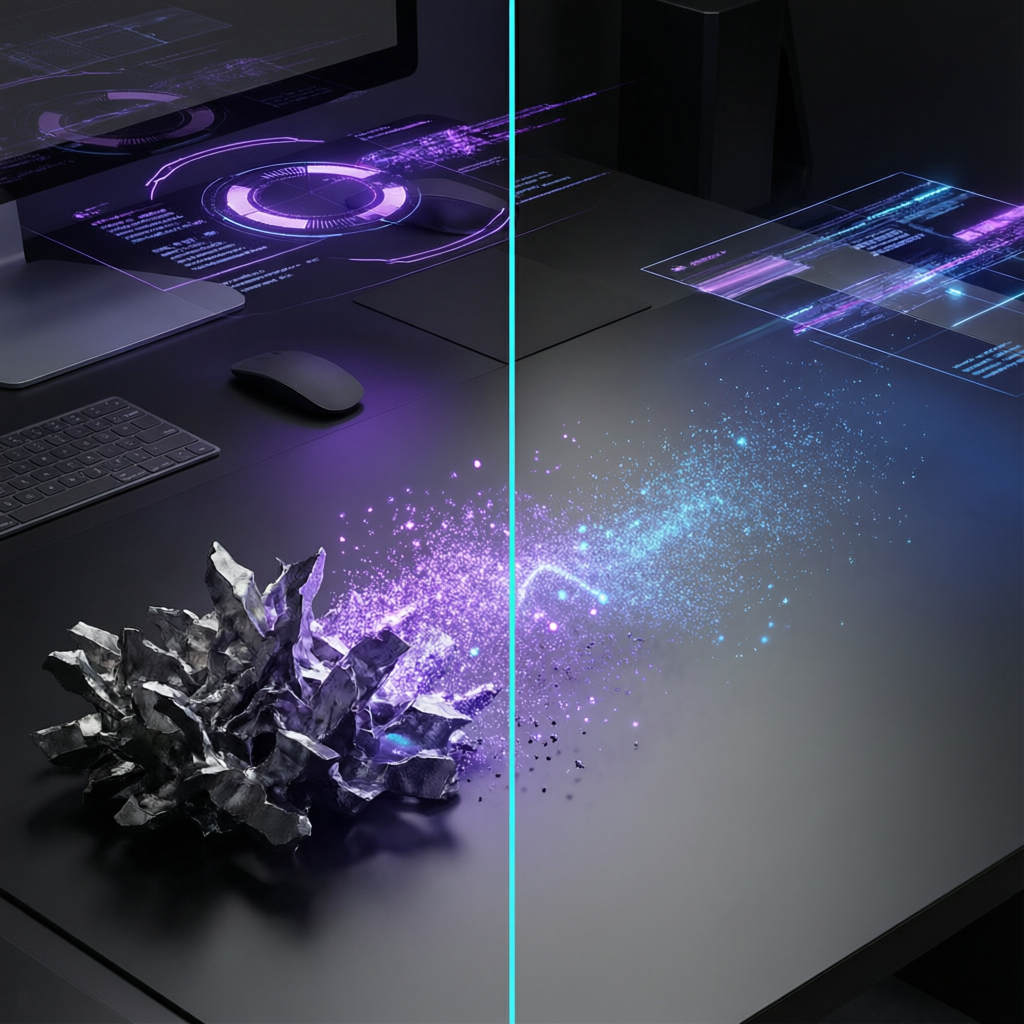
Have you ever captured the perfect photo only to notice an unwanted object ruining the composition? A stray tourist in your landscape shot, a power line cutting through a sunset, or an ex-partner in what would otherwise be a cherished memory? AI image inpainting and object removal technology has evolved dramatically in 2026, making it possible to seamlessly erase unwanted elements while intelligently reconstructing what should have been behind them.
This comprehensive technical guide covers everything from the fundamental algorithms powering modern inpainting to hands-on workflows with the best tools available today. Whether you are a professional photographer, content creator, or developer building image editing features, you will find actionable techniques to achieve flawless results every time.
What Is AI Image Inpainting?
AI image inpainting is the process of reconstructing missing or damaged regions of an image using deep learning models. Unlike traditional clone stamp or content-aware fill techniques that simply copy nearby pixels, modern AI inpainting understands the semantic context of an image — it knows what a sky should look like behind a removed bird, or how a brick wall pattern should continue after erasing graffiti.
The technology relies on generative models trained on millions of images, enabling them to synthesize entirely new content that is contextually appropriate, texturally consistent, and visually seamless.
Key Differences from Traditional Methods
| Feature | Traditional (Clone/Patch) | AI Inpainting (2026) |
|---|---|---|
| Context Understanding | None — copies nearby pixels | Semantic awareness of scene |
| Complex Backgrounds | Struggles with patterns | Generates coherent textures |
| Large Areas | Visible artifacts | Clean reconstruction |
| Processing Time | Manual, minutes per edit | Automated, seconds |
| Edge Blending | Requires manual feathering | Automatic seamless blending |
| Learning Ability | Static algorithms | Improves with training data |
How Modern AI Inpainting Works
Understanding the underlying technology helps you achieve better results and troubleshoot when things go wrong.
The Three-Stage Pipeline
Stage 1: Mask Detection and Refinement
The AI first identifies the exact boundaries of the object to remove. Modern systems use instance segmentation models (like SAM 2.1 or Mask2Former) to create pixel-perfect masks. The mask is then refined with edge-aware algorithms that ensure no remnants of the original object remain.
Stage 2: Context Analysis
Before generating replacement content, the model analyzes the surrounding context:
- Spatial context: What structures, textures, and patterns exist nearby?
- Semantic context: What type of scene is this? Indoor, outdoor, urban, natural?
- Lighting context: What is the lighting direction, color temperature, and shadow pattern?
- Perspective context: What vanishing points and depth cues exist?
Stage 3: Generative Reconstruction
Using diffusion-based models or transformer architectures, the AI generates new content for the masked region that:
- Matches surrounding textures and patterns
- Respects lighting and shadow consistency
- Maintains perspective and depth
- Preserves structural elements (lines, edges, curves)
Architecture Deep Dive
Modern inpainting models in 2026 primarily use two architectures:
Latent Diffusion Models (LDM)
These compress the image into a latent space, perform the inpainting in that compressed representation, then decode back to pixel space. This approach is computationally efficient and produces highly coherent results.
Input Image → Encoder → Latent Space + Mask → Diffusion Process → Decoder → Output ImageVision Transformers with Masked Attention
Transformer-based models treat the image as a sequence of patches, using masked attention mechanisms to attend only to the known (unmasked) regions when predicting content for masked areas.
Image Patches → Positional Encoding → Masked Self-Attention → Cross-Attention → Reconstructed PatchesTop AI Inpainting Tools Compared (2026)
Here is a comprehensive comparison of the best tools available for AI object removal and inpainting:
Professional Desktop Tools
| Tool | Best For | Inpainting Quality | Speed | Price |
|---|---|---|---|---|
| Adobe Photoshop (Generative Fill) | Professional workflows | 9.5/10 | Fast | $22.99/mo |
| Topaz Photo AI 4.0 | Batch processing | 9/10 | Very Fast | $199/year |
| Luminar Neo AI | One-click removal | 8.5/10 | Fast | $79/year |
| Affinity Photo 2.5 | Budget professional | 8/10 | Medium | $69.99 one-time |
| GIMP + Stable Diffusion Plugin | Open source | 8.5/10 | Slow | Free |
Online Tools and APIs
| Tool | Best For | API Available | Batch Support | Free Tier |
|---|---|---|---|---|
| AImage | Quick web-based removal | Yes | Yes | 5 images/day |
| Cleanup.pictures | Simple removals | Yes | No | Limited |
| Remove.bg (expanded) | Object + background | Yes | Yes | 1 free/month |
| Photoroom | E-commerce photos | Yes | Yes | Watermarked |
| Runway ML | Video inpainting | Yes | Yes | 125 credits |
Developer Libraries
| Library | Language | Model Backend | GPU Required | License |
|---|---|---|---|---|
| LaMa (Large Mask Inpainting) | Python | PyTorch | Recommended | Apache 2.0 |
| Stable Diffusion Inpainting | Python | PyTorch/ONNX | Yes | CreativeML |
| IOPaint | Python | Multiple | Optional | MIT |
| MAT (Mask-Aware Transformer) | Python | PyTorch | Yes | MIT |
| DeepFill v3 | Python | TensorFlow | Yes | Apache 2.0 |
Step-by-Step: Object Removal Workflow
Follow this professional workflow for consistently excellent results.
Step 1: Assess the Image
Before removing anything, evaluate:
- Object complexity: Simple (pole, wire) vs. complex (person, vehicle)
- Background complexity: Uniform sky vs. detailed scene
- Object overlap: Does the object occlude important elements?
- Resolution needs: Output resolution requirements affect tool choice
Step 2: Create an Accurate Mask
The mask quality directly determines your final result. Here are best practices:
For Simple Objects (wires, poles, small items):
- Use brush-based masking with 2-3px padding around the object
- A slightly oversized mask produces better blending than a tight one
For Complex Objects (people, vehicles):
- Use AI segmentation (SAM 2.1) for automatic edge detection
- Manually refine areas where the object touches other elements
- Include shadows and reflections in your mask
For Overlapping Objects:
- Create separate masks for the object and its shadow
- Process in layers: remove shadow first, then the object
- Or use a single encompassing mask for both
Step 3: Choose Your Inpainting Strategy
Strategy A: Single-Pass Removal
Best for: Small objects, uniform backgrounds, quick edits
# Example using IOPaint library
from iopaint import InpaintModel

model = InpaintModel("lama")
result = model.inpaint(
    image="photo.jpg",
    mask="mask.png",
    config={
        "hd_strategy": "Crop",
        "hd_strategy_crop_margin": 128,
        "hd_strategy_crop_trigger_size": 1024
    }
)
result.save("output.jpg")
Strategy B: Multi-Pass Iterative Removal
Best for: Large objects, complex backgrounds, high-quality requirements
- Remove the object with a coarse pass
- Identify any remaining artifacts
- Create a new mask for artifacts only
- Run a second, targeted inpainting pass
- Repeat until clean
Strategy C: Guided Inpainting with Reference
Best for: Scenes where you know what should replace the object
Some advanced tools allow you to provide a text prompt or reference image to guide the generation:
# Guided inpainting with Stable Diffusion
from diffusers import StableDiffusionInpaintPipeline

pipe = StableDiffusionInpaintPipeline.from_pretrained(
    "stabilityai/stable-diffusion-xl-inpainting-0.1"
)

result = pipe(
    prompt="a clean brick wall with consistent mortar pattern",
    image=original_image,
    mask_image=mask,
    num_inference_steps=30,
    guidance_scale=7.5
).images[0]
Step 4: Post-Processing and Refinement
After inpainting, apply these finishing touches:
- Edge blending: Use a soft eraser along mask boundaries if any seams are visible
- Noise matching: Add grain/noise to the inpainted area to match the original image
- Color correction: Adjust levels in the reconstructed region to match surrounding areas
- Sharpening: Apply selective sharpening if the inpainted area appears slightly softer
Advanced Techniques for Difficult Scenarios
Removing Objects from Reflective Surfaces
When an object appears in a reflection (water, glass, mirror), you need to:
- Create masks for both the object and its reflection
- Process the reflection separately — it should show what is behind the object, but distorted according to the surface properties
- Apply appropriate blur or distortion to the reconstructed reflection
Handling Complex Occlusions
When the removed object partially hides another important element:
- Identify what the occluded element should look like (symmetry, pattern repetition, perspective)
- Use guided inpainting with a text description of the hidden element
- Verify structural continuity: do lines and edges connect properly?
Large-Area Reconstruction
Removing large objects (over 30% of frame) requires special handling:
- Progressive filling: Shrink the mask from edges inward across multiple passes
- Reference-guided: Provide structural reference for what should fill the space
- Tiled processing: For very high-resolution images, process in overlapping tiles with consistent boundary conditions
Video Object Removal
Removing objects from video adds temporal consistency requirements:
- Track the object across all frames to generate per-frame masks
- Process keyframes first (every 5-10 frames)
- Interpolate between keyframes for intermediate frames
- Apply temporal smoothing to prevent flickering
# Video inpainting with temporal consistency
from propainter import ProPainter

model = ProPainter(
    flow_model="raft",
    inpaint_model="propainter_v2"
)

result_video = model.inpaint_video(
    video_path="input.mp4",
    mask_path="masks/",  # folder of per-frame masks
    temporal_stride=5,
    flow_consistency_weight=0.8
)
Optimizing Quality: Parameters and Settings
Resolution and Crop Strategy
| Image Size | Recommended Strategy | Notes |
|---|---|---|
| Under 1024px | Direct processing | Best quality at native resolution |
| 1024-2048px | Crop around mask | Crop with 128-256px margin |
| 2048-4096px | Tiled processing | 512px overlap between tiles |
| Over 4096px | Downscale, process, upscale | Use AI upscaler for final step |
Guidance Scale (for Diffusion Models)
- Low (3-5): More creative, less constrained — good for abstract backgrounds
- Medium (7-8): Balanced coherence and quality — recommended default
- High (10-15): Strict adherence to context — good for repetitive patterns
Inference Steps
- 20 steps: Fast preview quality
- 30 steps: Good quality for most use cases
- 50 steps: Maximum quality, diminishing returns beyond this
- 100+ steps: Negligible improvement, not recommended
Mask Expansion
Always expand your mask by 2-8 pixels beyond the object boundary:
- 2-3px: For clean, sharp-edged objects (text, geometric shapes)
- 5-8px: For organic objects with soft edges (hair, fur, foliage)
- 10-15px: For objects with shadows or glow effects
Common Mistakes and How to Avoid Them
Mistake 1: Mask Too Tight
Problem: Remnant pixels from the original object create ghosting artifacts Solution: Always expand mask by at least 3px. Include shadows and reflections.
Mistake 2: Ignoring Perspective
Problem: Reconstructed area does not match scene perspective Solution: Use guided inpainting with perspective-aware prompts. For architectural scenes, manually indicate vanishing points.
Mistake 3: Color Temperature Mismatch
Problem: Inpainted region has slightly different white balance Solution: Apply color matching as a post-processing step. Match histogram statistics of the inpainted region to surrounding areas.
Mistake 4: Resolution Mismatch
Problem: Inpainted area appears blurrier or sharper than surroundings Solution: Process at native resolution when possible. Apply matching noise/grain and sharpening levels.
Mistake 5: Repeating Patterns Look Unnatural
Problem: AI generates overly regular patterns that look artificial Solution: Add slight randomness. Process in multiple smaller passes. Use variation in guidance scale across the masked area.
Building an Automated Inpainting Pipeline
For developers and production workflows, here is a complete pipeline architecture:
Architecture Overview
Input Image → Object Detection → Mask Generation → Quality Assessment →
Inpainting Engine → Post-Processing → Quality Verification → Output
Implementation Example
import numpy as np
from PIL import Image
from segment_anything import SamPredictor, sam_model_registry
from iopaint import InpaintModel

class AutoInpaintPipeline:
    def __init__(self):
        # Initialize segmentation model
        sam = sam_model_registry["vit_h"](
            checkpoint="sam_vit_h.pth"
        )
        self.segmentor = SamPredictor(sam)

        # Initialize inpainting model
        self.inpainter = InpaintModel("lama")

    def detect_and_remove(self, image_path, target_class="person"):
        """Automatically detect and remove objects of specified class."""
        image = Image.open(image_path)

        # Generate mask using SAM
        self.segmentor.set_image(np.array(image))
        masks = self.segmentor.predict(
            point_coords=None,
            box=self.detect_objects(image, target_class),
            multimask_output=False
        )

        # Expand mask for better blending
        expanded_mask = self.expand_mask(masks[0], pixels=5)

        # Run inpainting
        result = self.inpainter.inpaint(
            image=np.array(image),
            mask=expanded_mask,
            config=self.get_optimal_config(image.size)
        )

        return result

    def expand_mask(self, mask, pixels=5):
        """Dilate mask by specified pixels."""
        from scipy.ndimage import binary_dilation
        structure = np.ones((pixels * 2 + 1, pixels * 2 + 1))
        return binary_dilation(mask, structure=structure)

    def get_optimal_config(self, image_size):
        """Select optimal processing config based on image size."""
        width, height = image_size
        max_dim = max(width, height)

        if max_dim <= 1024:
            return {"hd_strategy": "Original"}
        elif max_dim <= 2048:
            return {
                "hd_strategy": "Crop",
                "hd_strategy_crop_margin": 128
            }
        else:
            return {
                "hd_strategy": "Resize",
                "hd_strategy_resize_limit": 2048
            }
Batch Processing for Production
import os
from concurrent.futures import ThreadPoolExecutor

def batch_inpaint(input_dir, output_dir, max_workers=4):
    """Process multiple images in parallel."""
    pipeline = AutoInpaintPipeline()

    image_files = [
        f for f in os.listdir(input_dir)
        if f.lower().endswith(('.jpg', '.jpeg', '.png', '.webp'))
    ]

    def process_single(filename):
        input_path = os.path.join(input_dir, filename)
        output_path = os.path.join(output_dir, filename)

        result = pipeline.detect_and_remove(input_path)
        result.save(output_path, quality=95)
        return filename

    with ThreadPoolExecutor(max_workers=max_workers) as executor:
        results = list(executor.map(process_single, image_files))

    return results
Performance Benchmarks (2026)
Processing Speed by Model
| Model | Resolution | GPU | Time per Image | Quality Score |
|---|---|---|---|---|
| LaMa | 1024x1024 | RTX 4090 | 0.3s | 8.5/10 |
| SD-XL Inpainting | 1024x1024 | RTX 4090 | 2.1s | 9.5/10 |
| MAT | 512x512 | RTX 4090 | 0.8s | 8.0/10 |
| ProPainter (video) | 1080p/frame | RTX 4090 | 1.5s/frame | 9.0/10 |
| Adobe Gen Fill | 2048x2048 | Cloud | 3-5s | 9.5/10 |
Quality vs Speed Tradeoff
For production use:
- Real-time preview: Use LaMa (fastest, good quality)
- Final output: Use SD-XL Inpainting (slower, best quality)
- Video: Use ProPainter (optimized for temporal consistency)
Ethical Considerations
AI inpainting is powerful technology that comes with responsibility:
Acceptable Use Cases
- Removing distracting elements from personal photos
- Cleaning up product photography for e-commerce
- Restoring damaged historical photographs
- Removing watermarks from images you own the rights to
- Fixing photographic imperfections (sensor dust, lens flare)
Ethical Concerns
- Misinformation: Never use inpainting to create misleading images for news or public discourse
- Consent: Do not remove people from photos to misrepresent events
- Intellectual property: Do not remove watermarks from copyrighted images you do not own
- Forensics: Be aware that inpainted images may not be admissible as evidence
Best Practices
- Keep original unedited files
- Document significant edits for professional work
- Disclose AI editing when publishing in journalistic contexts
- Follow platform-specific guidelines for edited content
Future Directions (2026-2027)
The field of AI inpainting continues to advance rapidly:
- 3D-Aware Inpainting: Models that understand 3D scene geometry for more physically accurate reconstruction
- Real-Time Video Inpainting: Processing live video streams with object removal at 30+ fps
- Multi-Modal Guidance: Combining text, sketch, and reference images to guide reconstruction
- Consistency Models: Faster inference with single-step generation replacing iterative diffusion
- On-Device Processing: Mobile-optimized models for instant object removal on smartphones
Summary and Key Takeaways
AI image inpainting has matured into a reliable, production-ready technology in 2026. Here are the essential points to remember:
- Mask quality is everything: Spend time on accurate masks with appropriate expansion
- Choose the right tool: LaMa for speed, SD-XL for quality, ProPainter for video
- Multi-pass for complex scenes: Iterative refinement beats single-pass for difficult removals
- Post-processing matters: Color matching, noise addition, and edge blending complete the illusion
- Stay ethical: Use this powerful technology responsibly
Whether you are removing a photobomber from your vacation pictures or building an automated content moderation pipeline, the techniques in this guide will help you achieve professional-quality results consistently.
Related Articles:
- AI Photo Restoration Techniques: Complete Guide 2026
- Advanced AI Portrait Enhancement Techniques
- AI Image Style Transfer: Complete Guide
Recommended External Tools:
Ready to try AI object removal yourself?
Try AImage for Free →Ready to try it yourself?
Try AImage for Free →