
AI Image Compression Without Quality Loss: Complete Guide 2026
Master AI-powered image compression techniques that maintain visual quality while reducing file sizes by up to 80%. Learn how to optimize images for web, social media, and professional use.
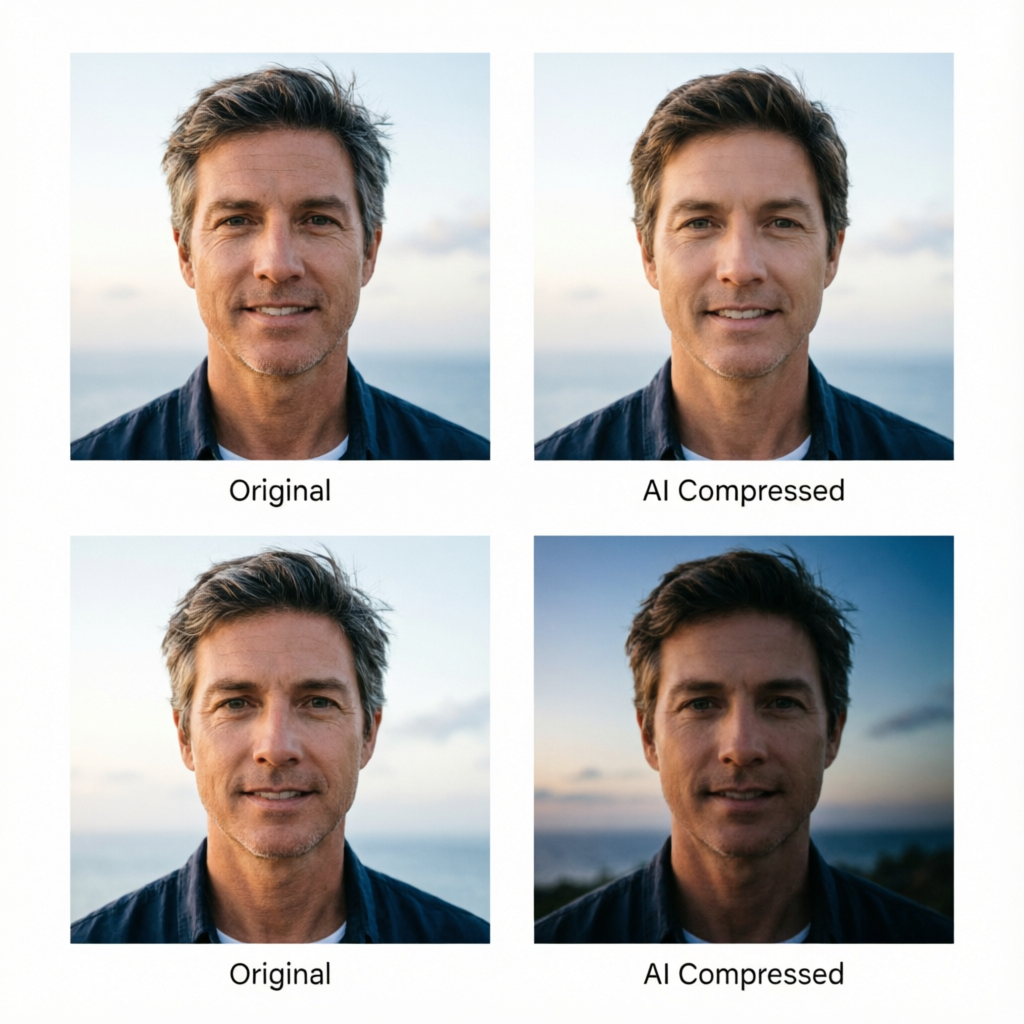
Large image files slow down websites, consume storage space, and frustrate users waiting for content to load. Traditional compression methods force you to choose between file size and visual quality—but AI-powered compression changes this equation entirely. Modern AI algorithms can reduce image file sizes by 60-80% while maintaining perceptual quality that's virtually identical to the original.
Whether you're a web developer optimizing site performance, a photographer managing massive RAW file libraries, or a content creator preparing images for social media, understanding AI image compression is essential in 2026. This comprehensive guide explores the technology behind quality-preserving compression, compares leading tools, and provides step-by-step workflows for different use cases.
The stakes are high: Google's Core Web Vitals now penalize slow-loading images in search rankings, while users abandon websites that take longer than 3 seconds to load. At the same time, visual quality expectations have never been higher. AI compression solves this dilemma by intelligently analyzing image content and applying context-aware optimization that traditional algorithms simply cannot match.
Understanding AI Image Compression Technology
How Traditional Compression Works
Traditional image compression relies on mathematical algorithms that identify and eliminate redundancy in pixel data. JPEG compression, developed in 1992, uses discrete cosine transform (DCT) to convert spatial image data into frequency components, then quantizes high-frequency details that human eyes perceive less accurately.
This approach works reasonably well but suffers from significant limitations:
- Fixed compression ratios across all image regions regardless of content importance
- Blocky artifacts become visible at higher compression rates (below 80% quality)
- Color banding in gradients and smooth transitions
- Loss of fine details like text, textures, and facial features
- No semantic understanding of image content or subject priority
PNG and other lossless formats preserve perfect quality but offer limited compression—typically only 10-30% file size reduction.
The AI Compression Revolution
AI-powered compression represents a paradigm shift by introducing content awareness and perceptual optimization. Modern neural networks trained on millions of images learn to distinguish between meaningful visual information and imperceptible details.
Key AI compression techniques include:
Perceptual Loss Functions: Instead of minimizing pixel-level differences, AI models optimize for human visual perception. A compression artifact that's mathematically significant but visually imperceptible receives lower priority than changes affecting perceived quality.
Content-Aware Optimization: AI identifies important image regions—faces, text, key subjects—and allocates more bits to preserve these areas while aggressively compressing backgrounds and less critical content.
Learned Compression Artifacts: Rather than applying uniform quantization, AI models learn which types of compression artifacts are least noticeable for specific image content types.
Super-Resolution Integration: Some AI compressors intentionally downsample images during compression, then use AI super-resolution during decompression to restore details—achieving better results than maintaining original resolution throughout.
Temporal Coherence (for video/sequences): AI maintains visual consistency across frames or similar images, reducing redundancy more effectively than treating each image independently.
Measuring Compression Quality
Understanding compression metrics helps evaluate AI compression performance:
Peak Signal-to-Noise Ratio (PSNR): Measures pixel-level differences between original and compressed images. Higher values indicate less distortion, but PSNR doesn't always correlate with perceived quality.
Structural Similarity Index (SSIM): Evaluates perceived quality by comparing luminance, contrast, and structure. SSIM values range from 0 to 1, with values above 0.95 indicating excellent quality preservation.
Learned Perceptual Image Patch Similarity (LPIPS): Uses deep neural networks to measure perceptual similarity based on how humans actually perceive images. Lower LPIPS scores indicate better perceptual quality.
Visual Information Fidelity (VIF): Quantifies information shared between original and compressed images. Higher VIF scores indicate better information preservation.
For practical purposes, SSIM above 0.95 and visual inspection by multiple viewers provide the most reliable quality assessment.
Top AI Image Compression Tools Comparison 2026
Tool Comparison Matrix
| Tool | Compression Rate | Quality (SSIM) | Speed | Best For | Pricing |
|---|---|---|---|---|---|
| AImage AI Compress | 70-85% | 0.97-0.99 | Fast | Web optimization | Free/$9/mo |
| TinyPNG AI | 60-75% | 0.95-0.97 | Very Fast | Batch processing | Free/Pay-per-use |
| Squoosh (Google) | 65-80% | 0.96-0.98 | Fast | Browser-based | Free |
| ImageOptim AI | 70-80% | 0.96-0.98 | Fast | Mac users | Free |
| Compress Studio | 75-85% | 0.97-0.99 | Medium | High-quality needs | $19/mo |
| OptiImage Pro | 60-70% | 0.95-0.96 | Very Fast | API integration | $29/mo |
Detailed Tool Reviews
AImage AI Compress excels at balancing compression rate with quality preservation. Its neural network model specifically targets web and social media use cases, maintaining excellent visual quality while achieving 70-85% file size reduction. The batch processing interface handles hundreds of images efficiently, and the free tier provides generous monthly quotas.
TinyPNG AI has evolved from basic PNG optimization to incorporate advanced AI algorithms. It processes images remarkably quickly—often under 1 second per image—making it ideal for high-volume workflows. The smart compression adapts to image content automatically, though it sometimes over-compresses complex textures.
Squoosh (Google's open-source tool) runs entirely in your browser using WebAssembly, ensuring privacy since images never leave your device. It offers side-by-side comparison views and manual control over compression parameters. The interface provides real-time feedback as you adjust settings, making it excellent for learning how different algorithms affect specific images.
ImageOptim AI integrates seamlessly with macOS workflows, supporting drag-and-drop batch processing and Finder integration. It combines multiple compression algorithms (including AI-enhanced modes) and automatically selects optimal settings per image. Mac users appreciate its native feel and integration with design tools.
Compress Studio targets professional photographers and designers requiring maximum quality preservation. Its AI model prioritizes subtle tonal gradations and fine details, making it suitable for high-resolution prints and portfolio work. The compression is more conservative (70-80% reduction) but maintains exceptional quality.
OptiImage Pro focuses on API integration for automated workflows and web applications. It processes images in under 2 seconds and provides extensive customization options through REST API parameters. Enterprise users value its scalability and reliability for production environments.
Step-by-Step Compression Workflows
Workflow 1: Optimizing Images for Web Performance
Goal: Reduce page load time while maintaining visual quality
Target: 60-80% file size reduction, SSIM above 0.95
Steps:
-
Analyze current image sizes
- Use browser developer tools to identify large images slowing page load
- Prioritize images above 500KB for compression
- Check if images are larger than their display dimensions
-
Prepare images for processing
- Resize images to maximum necessary display dimensions (typically 2x for Retina displays)
- Convert TIFF/PSD to PNG or JPEG as appropriate
- Organize images into folders by content type (photos, graphics, screenshots)
-
Select appropriate compression tool
- Use AImage AI Compress for general web images
- Use TinyPNG AI for icons and graphics with transparency
- Use Squoosh for complex images requiring manual tuning
-
Configure compression settings
- Start with "Auto" mode to establish baseline
- For photos: enable content-aware compression, quality 85-90
- For graphics: prioritize sharp edges, quality 90-95
- Enable progressive JPEG for images above 50KB
-
Batch process images
- Process similar images together with same settings
- Monitor output quality using side-by-side comparison
- Keep original files as backup in separate folder
-
Validate results
- Check file sizes: target 20-40% of original size
- Verify visual quality: zoom to 100% and inspect details
- Test page load time using Google PageSpeed Insights
- Confirm images display correctly at various viewport sizes
-
Implement lazy loading
- Add loading="lazy" attribute to img tags below fold
- Use modern image formats (WebP, AVIF) with fallbacks
- Implement responsive images with srcset for different screen sizes
Expected Results: 50-70% faster page load time, improved Core Web Vitals scores, no visible quality degradation.
Workflow 2: Compressing Photography Portfolio Images
Goal: Reduce storage and bandwidth costs while preserving professional quality
Target: 60-75% file size reduction, SSIM above 0.97
Steps:
-
Export from RAW processing
- Export from Lightroom/Capture One at full resolution
- Use maximum quality JPEG (quality 100) or TIFF as starting point
- Apply sharpening for output medium (screen viewing)
-
Categorize images by importance
- Flagship portfolio images: conservative compression (70-75% reduction)
- Secondary portfolio images: standard compression (75-80% reduction)
- Archive/client delivery: aggressive compression (80-85% reduction)
-
Select compression profile
- Use Compress Studio for flagship images (prioritizes quality)
- Use AImage AI Compress for secondary images (balanced approach)
- Use TinyPNG AI for client delivery (prioritizes file size)
-
Configure quality-preserving settings
- Enable face detection to protect portrait details
- Set minimum quality threshold (SSIM above 0.97)
- Preserve EXIF metadata for portfolio context
- Apply subtle noise reduction to help compression
-
Process and review
- Compress images in small batches (10-20 at a time)
- Review each compressed image at 100% zoom
- Check skin tones, textures, and fine details
- Reprocess any images showing visible artifacts
-
Organize compressed files
- Create folder structure: /original, /web-optimized, /client-delivery
- Use consistent naming convention with compression suffix
- Document compression settings for future reference
-
Test across platforms
- View images on different displays (laptop, phone, tablet)
- Check color accuracy compared to originals
- Verify images load smoothly on portfolio website
- Request feedback from trusted colleagues on quality
Expected Results: 60-75% storage savings, faster portfolio website performance, maintained professional image quality sufficient for client presentations and online portfolios.
Workflow 3: Social Media Content Optimization
Goal: Meet platform requirements while maximizing visual appeal
Target: Platform-specific file sizes, SSIM above 0.95
Steps:
-
Understand platform requirements
- Instagram: under 8MB recommended, 1080x1080px to 1080x1350px
- Facebook: under 4MB recommended, minimum 1200px width
- Twitter: under 5MB, aspect ratios 2:1 to 1:1
- LinkedIn: under 10MB, minimum 1200x627px for link previews
- Pinterest: under 20MB, tall aspect ratios (2:3 preferred)
-
Prepare content variations
- Create platform-specific crops and dimensions
- Adjust brightness/contrast for mobile viewing
- Add branding elements or watermarks if needed
-
Apply platform-optimized compression
- Use AImage AI Compress with social media presets
- Enable "enhance for mobile" option for improved contrast
- Compress to 10-20% below platform limits for upload headroom
- Test both JPEG and PNG to determine smaller file size
-
Maintain visual hierarchy
- Ensure text remains readable after compression
- Protect faces and key subjects from artifacts
- Verify colors remain vibrant and engaging
-
Batch process content calendar
- Create templates for recurring content types
- Process weekly/monthly content in single session
- Organize by platform and posting schedule
-
Quality check on mobile devices
- Preview compressed images on phone screen
- Check for banding in gradients or sky areas
- Verify details visible at typical viewing distances
- Test in actual social media apps, not just file viewers
-
Monitor engagement metrics
- Track performance of heavily compressed vs lightly compressed posts
- Correlate file size with engagement rates
- Adjust compression settings based on data
Expected Results: Faster upload times, improved mobile viewing experience, meeting platform requirements while maintaining visual appeal that drives engagement.
Advanced Compression Techniques
Content-Type Specific Optimization
Different image content types benefit from specialized compression approaches:
Portraits and People:
- Enable face detection algorithms to allocate more bits to faces
- Protect skin tone smoothness—compression artifacts appear especially harsh on skin
- Maintain eye sharpness and fine details in hair textures
- Consider slight noise reduction before compression to avoid grain amplification
Landscape Photography:
- Preserve fine textures in foliage, water, and clouds
- Protect tonal gradations in sky areas (common banding location)
- Maintain sharpness in foreground details while allowing background compression
- Use content-aware compression to prioritize hero subject areas
Product Photography:
- Maintain crisp edges and sharp details critical for e-commerce
- Preserve accurate colors for product representation
- Protect white backgrounds from compression artifacts
- Ensure fine textures (fabrics, materials) remain discernible
Text-Heavy Images (infographics, screenshots):
- Prioritize sharpness over smoothness
- Use PNG format for pure text on simple backgrounds
- Apply higher quality settings to preserve text readability
- Consider vector formats (SVG) for simple diagrams
Graphics and Illustrations:
- Leverage PNG compression for images with transparency
- Protect sharp color boundaries and gradients
- Use palette optimization for images with limited color ranges
- Consider SVG format for scalable graphics with simple shapes
Compression Pipeline Integration
Automated Workflow Setup:
Integrate AI compression into existing creative workflows using API automation:
# Example: Compress all images in export folder
for file in exports/*.jpg; do
  curl -X POST https://api.aimage.ai/compress \
    -F "image=@$file" \
    -F "quality=85" \
    -F "mode=auto" \
    -o "compressed/$(basename $file)"
done
CMS Integration:
Modern content management systems support automated compression on upload:
- WordPress: Install AI-powered compression plugins (Imagify, ShortPixel AI)
- Shopify: Configure automatic image optimization in store settings
- Custom CMS: Implement compression API calls in upload handlers
Build Process Integration:
Web developers can integrate compression into build tools:
- Webpack: Use imagemin plugins with AI compression loaders
- Gulp: Configure imagemin tasks with AI compression modules
- Next.js: Leverage built-in Image component with AI compression providers
Cloud Storage Integration:
Configure automatic compression for uploaded images:
- Cloudflare Images: Enable automatic AI compression for cached images
- AWS S3: Use Lambda functions to trigger compression on upload
- Google Cloud Storage: Implement Cloud Functions for post-upload processing
Handling Edge Cases
High-ISO Photography: Images with significant noise pose special challenges. Compress high-ISO images at higher quality settings (90-95) to avoid compounding noise with compression artifacts. Consider applying noise reduction before compression, but avoid over-smoothing which removes texture detail.
Black and White Images: Monochrome images show compression artifacts more readily than color images. The absence of color variation means luminance compression becomes more visible. Use higher quality settings (85-90 minimum) and prioritize tonal gradation preservation.
Images with Transparency: PNG images with alpha channels require different compression approaches. Use tools specifically designed for PNG optimization (TinyPNG AI, ImageOptim) rather than JPEG-focused compressors. Consider if transparency is truly necessary—converting to JPEG with appropriate background color often yields much better compression.
HDR and Wide-Gamut Images: High dynamic range images contain more tonal information than standard images. Compress HDR images conservatively to preserve the expanded tonal range that justifies their use. Verify compression doesn't clip highlights or crush shadows.
Tiled/Pattern Images: Images with repeating patterns (textures, backgrounds) compress exceptionally well with the right approach. AI compressors excel here by recognizing pattern repetition and efficiently encoding redundancy.
Measuring Compression Success
Performance Metrics
Page Load Time Improvement: Use Google PageSpeed Insights, WebPageTest, or Lighthouse to measure before/after load times. Target improvements of 30-50% for image-heavy pages.
Bandwidth Savings: Monitor server logs or CDN analytics to quantify bandwidth reduction. Calculate cost savings based on hosting plan charges per GB.
Storage Optimization: Track total storage used for image libraries. Document reduction percentages and calculate ongoing storage cost savings.
User Experience Metrics: Monitor bounce rate, time on page, and engagement metrics before and after compression optimization. Faster load times typically improve all engagement metrics.
Quality Assurance Checklist
Before deploying compressed images, verify:
- SSIM score above 0.95 for all images (0.97+ for portfolio/flagship content)
- No visible banding in gradient areas (sky, backgrounds)
- Text remains sharp and readable at intended viewing sizes
- Faces and key subjects show no distracting artifacts
- Colors remain accurate and vibrant (compare side-by-side with originals)
- Images display correctly across different devices and screen sizes
- File sizes meet platform requirements with adequate headroom
- Original files backed up before replacing with compressed versions
- Compression settings documented for future reference
- A/B testing shows no negative impact on engagement metrics
Common Compression Failures and Solutions
Problem: Visible banding in sky areas or gradients
Solution: Reduce compression rate slightly (5-10% less reduction), add subtle noise before compression to break up banding patterns, or use higher bit depth during intermediate processing steps.
Problem: Text appears blurry or has halos
Solution: Switch to PNG format for text-heavy images, increase quality setting specifically for these images, or apply subtle sharpening after compression.
Problem: Skin tones show unnatural smoothness or waxy appearance
Solution: Enable face protection in compression tool settings, reduce noise reduction strength, or use less aggressive compression (70-75% instead of 80-85% reduction).
Problem: Colors appear washed out or shifted
Solution: Verify color profile preservation during compression, use higher quality settings to maintain color accuracy, or perform color correction in pre-compression processing.
Problem: Fine details lost (hair, textures, patterns)
Solution: Increase quality setting for detail-rich areas, use content-aware compression that prioritizes texture preservation, or consider selective compression where different image regions use different quality settings.
Future of AI Image Compression
Emerging Technologies
Generative Compression: Next-generation AI compressors may use generative models to reconstruct compressed images. Rather than storing pixel data, these systems might store semantic understanding and regenerate images on decompression—potentially achieving 90-95% file size reduction while maintaining perceived quality.
Neural Codec Standards: The industry is developing standardized neural network-based compression formats that could eventually replace JPEG and PNG. These formats would enable dramatically better compression ratios while maintaining backward compatibility through traditional format fallbacks.
Context-Aware Streaming: Future compression may adapt in real-time based on user device capabilities, network conditions, and viewing context. The same image source could deliver different compression profiles optimized for each user's specific circumstances.
Perceptual Quality Optimization: Advanced AI models will better predict human quality perception, enabling more aggressive compression in areas where mathematical quality metrics suggest degradation but human viewers perceive no difference.
Edge Computing Integration: On-device AI processors in smartphones and computers will enable real-time compression and decompression with negligible performance impact, allowing applications to work with uncompressed images internally while storing and transmitting optimally compressed versions.
Best Practices for 2026 and Beyond
-
Adopt Modern Formats: Transition to WebP and AVIF formats where supported, with JPEG fallbacks for compatibility. These formats offer 30-50% better compression than JPEG at equivalent quality.
-
Implement Responsive Images: Use srcset and sizes attributes to serve appropriately sized images for each device. Avoid sending desktop-sized images to mobile users.
-
Leverage CDN Optimization: Many CDNs now offer automatic AI-powered compression as part of their service. Enable these features to optimize images at the edge without additional workflow complexity.
-
Monitor Compression Technology: AI compression capabilities improve rapidly. Review and update compression tools annually to leverage latest advances.
-
Maintain Original Archives: Always keep uncompressed originals in archival storage. Compression technology improves, and future tools may achieve better results from original files than re-compressing already compressed images.
-
Educate Stakeholders: Help non-technical team members understand compression trade-offs. Establish clear quality guidelines and compression policies for different content types.
-
Automate Where Possible: Integrate compression into automated workflows to ensure consistency and eliminate manual compression steps that risk being skipped under deadline pressure.
-
Test Across Devices: Regularly review compressed images on actual devices (phones, tablets, laptops) rather than just desktop monitors. Compression artifacts appear differently across display types.
-
Balance Quality and Performance: Recognize that perfect quality isn't always necessary. A slight quality reduction invisible to viewers but yielding significant performance improvement represents good optimization.
-
Stay Informed: Follow developments in compression technology, image formats, and web performance best practices. The field evolves rapidly, and staying current ensures you leverage the best available tools and techniques.
Frequently Asked Questions
Q: Can AI compression truly maintain quality while reducing file size by 70-80%?
A: Yes, for most practical applications. AI compression achieves perceptual quality preservation rather than pixel-perfect reproduction. The compressed image may differ slightly at pixel level but appears visually identical to humans. For use cases requiring mathematical perfection (medical imaging, scientific data), use lossless compression instead.
Q: Is AI compression slower than traditional compression?
A: Modern AI compression tools process images in 1-3 seconds—comparable to or faster than traditional compression workflows that require manual parameter tuning. Batch processing hundreds of images takes minutes rather than hours.
Q: Which format is better for AI compression: JPEG or PNG?
A: JPEG for photographs and complex images with many colors. PNG for graphics, screenshots, logos, and any image requiring transparency. AI compression enhances both formats, but the fundamental format characteristics remain.
Q: Will AI compression work on already-compressed images?
A: Results vary. Re-compressing already compressed images yields diminishing returns and risks accumulating artifacts. If possible, return to original uncompressed source and apply AI compression once. If working with compressed sources, test carefully and use conservative settings.
Q: Do compressed images look worse on high-resolution displays?
A: AI-compressed images generally scale well to high-resolution displays better than traditionally compressed images. The perceptual optimization used by AI compressors maintains the visual information humans actually perceive regardless of display resolution.
Q: Can I use AI compression for printed materials?
A: For professional printing, use conservative compression (70-75% reduction maximum) and test printed samples before full production. Print reveals compression artifacts more readily than screens. For casual printing (home printers, event materials), standard AI compression works well.
Q: Are there any downsides to AI compression?
A: Potential downsides include: (1) processing time for large batches, though modern tools are quite fast; (2) need for internet connection with cloud-based tools; (3) subscription costs for professional tools; (4) inability to perfectly reconstruct original data; (5) occasional artifacts with certain image types requiring manual parameter adjustment.
Q: How does AI compression affect image SEO?
A: Positively. Faster-loading images improve page speed, a confirmed Google ranking factor. Use descriptive filenames and alt text regardless of compression method—these SEO factors aren't affected by compression.
Q: Can AI compression remove watermarks or other content?
A: No. AI compression reduces file size while preserving visual content—it doesn't remove or alter image elements. Watermarks, logos, and all visible content remain after compression.
Q: What's the best compression setting for social media?
A: Use platform-specific presets in your compression tool, or aim for 75-80% file size reduction with quality setting 85-90. Test on mobile devices before posting—this is where most users will view content.
Related Articles:
- AI-Powered Image Format Conversion Guide 2026
- Advanced AI Portrait Enhancement Techniques 2026
- Mobile vs Desktop AI Photo Editing Comparison 2026
Recommended External Tools:
Ready to optimize your images with AI compression?
Try AImage AI Compress for Free →Ready to try it yourself?
Try AImage for Free →