
Advanced Color Grading with AI Tools: Complete Guide 2026
Master professional color grading techniques using AI-powered tools. Learn color theory, LUT application, cinematic looks, and advanced workflows to transform your photos.
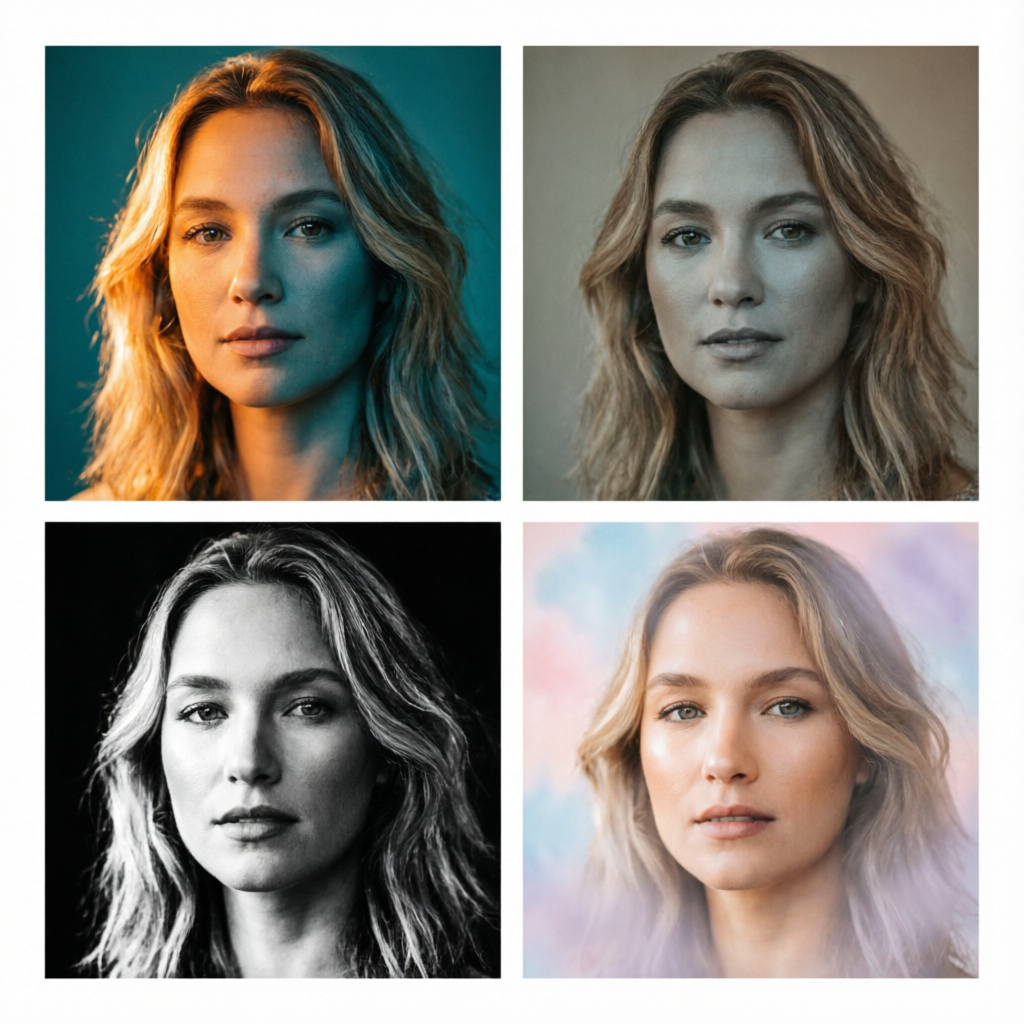
Color grading is the secret weapon that separates amateur photos from professional masterpieces. While basic color correction ensures accurate white balance and exposure, color grading transforms images into artistic statements with mood, emotion, and visual consistency. In 2026, AI-powered color grading tools have revolutionized this process, making professional-quality results accessible to everyone while dramatically reducing processing time.
This comprehensive guide will take you from color grading fundamentals to advanced AI-assisted techniques. Whether you're a professional photographer seeking workflow efficiency, a content creator building a cohesive brand aesthetic, or an enthusiast wanting to elevate your work, you'll learn practical strategies to achieve stunning, consistent color grades across your entire portfolio.
Understanding Color Grading Fundamentals
Before diving into AI tools, understanding core color theory principles ensures you make informed creative decisions rather than randomly applying filters.
Color Theory Basics for Grading
Primary Color Relationships
The color wheel governs how colors interact. Complementary colors (opposite on the wheel) create visual tension and draw attention—think orange skin tones against teal shadows in cinematic looks. Analogous colors (adjacent on the wheel) produce harmony and cohesion, ideal for serene landscapes or brand consistency.
Color Temperature and Mood
Warm colors (reds, oranges, yellows) evoke energy, passion, and comfort. Cool colors (blues, greens, purples) suggest calm, professionalism, or melancholy. The orange-and-teal "blockbuster look" became ubiquitous because it maximizes visual interest while maintaining pleasing skin tones.
Saturation and Vibrance Control
Saturation affects all colors equally, while vibrance protects already-saturated areas. Over-saturation looks garish and unprofessional; selective saturation creates focal points. AI tools excel at nuanced vibrance adjustments that would take manual editors hours of masking work.
The Difference: Color Correction vs Color Grading
Color Correction (Technical)
- Fixes technical issues (white balance, exposure, contrast)
- Achieves neutral, accurate starting point
- Ensures consistency across image series
- Typically the first step in any workflow
Color Grading (Creative)
- Applies artistic vision and mood
- Creates signature looks and styles
- Enhances storytelling and emotional impact
- Builds brand identity through consistent aesthetics
Think of correction as tuning an instrument, grading as composing the music. Both are essential, but they serve different purposes.
Common Color Grading Styles
Cinematic Look
Inspired by Hollywood films—elevated blacks (no true black), desaturated midtones, orange skin tones, teal shadows. Creates filmic quality and professional polish.
Matte Finish
Lifted blacks create faded, vintage feel. Reduces contrast while maintaining detail. Popular for fashion, lifestyle, and nostalgic content.
High Contrast Drama
Deep blacks, bright highlights, punchy midtones. Intensifies mood and creates bold, magazine-worthy images.
Pastel/Soft
Reduced saturation, lifted shadows, softened highlights. Gentle, dreamy aesthetic favored by lifestyle and wedding photographers.
Moody/Dark
Crushed shadows, targeted highlights, selective color pops. Creates mystery and drama, popular in editorial and portrait work.
How AI Enhances Color Grading
AI doesn't replace artistic vision—it amplifies your capability and accelerates workflow. Here's where AI excels:
Intelligent Color Analysis
Modern AI tools analyze your image to understand:
- Subject matter (portrait, landscape, product, etc.)
- Lighting conditions (natural, studio, mixed sources)
- Color palette distribution
- Intended mood indicators (composition, subject expression)
This analysis enables context-aware adjustments that respect your image's unique characteristics rather than applying one-size-fits-all filters.
Automated LUT Generation
Look-Up Tables (LUTs) are mathematical formulas that remap colors consistently across images. Professional LUTs take hours to create manually. AI can:
- Generate custom LUTs from reference images
- Extract color grades from favorite photos
- Create consistent looks across mixed lighting conditions
- Adapt LUTs to different image characteristics
Selective Color Intelligence
Manual color isolation requires complex masking. AI identifies and adjusts:
- Specific color ranges (all blues, only sky blues)
- Semantic elements (skin tones, foliage, sky)
- Luminance zones (highlights, midtones, shadows)
- Subject vs background automatically
This enables complex grades like "warm skin tones, cool backgrounds" with single-click simplicity.
Batch Processing with Adaptability
Traditional batch processing applies identical adjustments to all images. AI batch processing:
- Maintains consistent mood while adapting to each image
- Preserves individual image characteristics
- Adjusts for varying lighting conditions
- Ensures cohesive results across diverse shoots
Perfect for wedding photographers processing 500+ images or content creators maintaining brand consistency.
Essential AI Color Grading Tools
Adobe Lightroom + Sensei AI
Strengths
Industry-standard workflow integration, powerful auto-adjustments, AI-powered masking, extensive preset library, seamless camera raw processing.
Best For
Professional photographers, wedding/event work, large volume processing, those already in Adobe ecosystem.
Key AI Features
- Auto Tone and Color with content awareness
- Select Subject/Sky/Background for targeted adjustments
- Adaptive presets that adjust to image characteristics
- Denoise and Enhance Details powered by super-resolution AI
Typical Workflow
Import → AI auto-adjust baseline → Apply custom grade → Sync across batch with AI adaptation → Export.
Luminar Neo
Strengths
Layer-based editing, AI sky replacement, creative tools, portrait AI enhancements, affordable one-time purchase option.
Best For
Enthusiast photographers, creative edits, standalone solution, those seeking Photoshop alternatives.
Key AI Features
- Portrait Bokeh AI and Face Light
- Skin AI and Body AI for portraits
- Sky AI for realistic sky replacement
- Atmosphere AI for depth and mood
- RelightAI for lighting direction changes
Typical Workflow
Open image → Choose AI templates → Refine adjustments → Layer creative effects → Export.
Capture One
Strengths
Superior color science, professional tethering, advanced color editor, style brushes, precise control.
Best For
Commercial photographers, studio work, fashion/product photography, users demanding color accuracy.
Key AI Features
- AI-powered auto-adjustments respect color science
- Smart adjustments that learn your preferences
- Advanced color editor with intelligent masking
- Styles that adapt to image characteristics
Typical Workflow
Tethered capture/import → Color correction → Apply styles → Local adjustments → Client delivery.
DxO PhotoLab
Strengths
Best-in-class denoising (PureRAW), optical corrections, local adjustments, U Point technology.
Best For
Low-light photographers, technical excellence focus, users wanting maximum image quality.
Key AI Features
- DeepPRIME XD noise reduction
- Smart Lighting for dynamic range recovery
- AI-powered local adjustments
- HSL equalizer with intelligent masking
Typical Workflow
Import → DeepPRIME processing → Smart corrections → Selective adjustments → Export to secondary editors if needed.
ON1 Photo RAW
Strengths
Fast performance, non-destructive workflow, creative effects, affordable, no subscription.
Best For
Budget-conscious professionals, users avoiding subscriptions, all-in-one solution seekers.
Key AI Features
- AI Quick Mask for instant selections
- Auto Tone with scene detection
- AI Match for color consistency
- Effects that adapt to image content
Typical Workflow
Browse → Quick AI adjustments → Apply effects → Local refinements → Export or print.
Mobile: Darkroom (iOS)
Strengths
Professional tools on mobile, curve adjustments, RGB editing, batch processing, synchronization.
Best For
Mobile photographers, on-the-go editing, iPhone content creators.
Key AI Features
- Intelligent auto-enhance
- Selective color adjustments
- Curve-based grading tools
- Portrait-specific enhancements
Typical Workflow
iPhone capture → Quick AI baseline → Curve adjustments → Selective refinements → Direct social sharing.
Step-by-Step AI Color Grading Workflows
Workflow 1: Cinematic Look (Portrait)
Objective: Create the signature orange-and-teal cinematic look popularized by blockbuster films.
Step 1: Preparation
Open image in your chosen AI tool (Lightroom example). Ensure proper exposure and white balance as starting point. Use AI auto-adjust if image needs correction.
Step 2: Global Adjustments
- Lift shadows (+25-40): Prevents crushed blacks
- Reduce highlights (-10-15): Preserves detail
- Increase contrast (+15-20): Adds punch
- Clarity/Texture (+5-10): Subtle structure enhancement
Step 3: Color Wheels/Grading
- Shadows: Add blue/teal (move towards cyan on color wheel)
- Midtones: Subtle warm shift (towards yellow-orange)
- Highlights: Warm orange (towards orange-yellow)
- Use AI masking to protect skin tones from shadow teal
Step 4: Selective Color Adjustments
- Use AI "Select Subject" to isolate person
- Warm skin tones: Orange +5-10, Yellow +5
- Decrease saturation globally (-10 to -15)
- Increase vibrance (+10-15) to restore selective saturation
Step 5: HSL Fine-Tuning
- Orange: +10 saturation (skin glow)
- Blue/Aqua: -10 to -20 saturation (subtle teal)
- Yellow: -5 saturation (prevents oversaturation)
- Adjust hues for exact orange-teal balance
Step 6: Final Polish
- Add slight vignette (darken edges)
- Film grain (+5-10) for texture
- Sharpening (amount 40-60, radius 1.0)
- Use AI denoise if needed for shadow areas
Result: Professional cinematic portrait with signature color separation and filmic quality.
Workflow 2: Matte Finish (Lifestyle/Fashion)
Objective: Create the soft, faded aesthetic popular in lifestyle and fashion photography.
Step 1: Tone Curve Adjustment
The matte look comes primarily from the tone curve:
- Lift the black point (bottom left of curve) upward
- This prevents true black, creating that faded appearance
- Keep highlights and midtones natural
- Slight S-curve for gentle contrast
Step 2: Contrast Reduction
- Reduce global contrast (-15 to -25)
- Add back local contrast with Clarity (-5 to -10 for soft) or Texture (+5-10 for detail)
- Use AI to balance micro vs macro contrast
Step 3: Desaturate with Care
- Global saturation -20 to -30
- Vibrance +10 to +15 (preserves skin tones)
- Use AI selective color to maintain interest in key areas
Step 4: Color Temperature
- Shift towards warm (yellow/orange) for intimate feel
- Or cool (blue/purple) for editorial aesthetic
- Let AI analyze ambient lighting for natural-looking shifts
Step 5: Split Toning (Subtle)
- Shadows: Lift with soft purple or blue
- Highlights: Add cream or soft yellow
- Balance 5-15%, not overpowering
- AI can suggest complementary tones based on your image
Step 6: Finishing Touches
- Add subtle grain for film aesthetic
- Soften highlights (highlight -10-20)
- Use AI portrait tools to ensure flattering skin rendering
- Light vignette to draw focus inward
Result: Soft, dreamy images with faded blacks and gentle color palette perfect for lifestyle branding.
Workflow 3: High Contrast Drama (Product/Editorial)
Objective: Create bold, magazine-quality images with punchy colors and dramatic contrast.
Step 1: Maximize Dynamic Range
- Blacks -30 to -50 (deep, rich shadows)
- Whites +20 to +40 (bright highlights)
- Contrast +30 to +50 (bold separation)
- Use AI HDR tools if needed to preserve detail
Step 2: Aggressive Clarity and Structure
- Clarity +20 to +40 (midtone contrast)
- Texture +10 to +20 (fine detail)
- Balance with AI sharpening for crisp edges
- Avoid over-processing skin in portraits (use AI masking)
Step 3: Saturate Strategically
- Vibrance +30 to +50 (bold colors)
- Saturation +10 to +20 (intensify)
- Use AI selective color to emphasize brand colors or key elements
- Pull back on one color family to avoid overwhelm
Step 4: Targeted Color Isolation
Use AI to isolate and enhance specific colors:
- Product: Boost saturation and luminance
- Background: Desaturate for product pop
- Adjust hues for perfect brand color matching
- Use AI complementary color suggestions
Step 5: Precision Sharpening
- Amount 80-100 (crisp edges)
- Radius 0.8-1.2 (depends on resolution)
- Masking 50-80 (edges only)
- AI smart sharpen respects textures
Step 6: Final Drama Elements
- Graduated filters with AI for directional lighting effects
- Dodge and burn with AI intelligent masking
- Subtle vignette for focus direction
- Check output sharpening for web/print
Result: Eye-catching, high-impact images perfect for advertising, product showcases, or editorial features.
Advanced Techniques
Creating Custom LUTs from Reference Images
Want to replicate the color grade from your favorite film still or another photographer's work?
Using AI LUT Extraction
- Import reference image alongside your photo
- Use AI "Match Color" or "Color Transfer" features
- Tool analyzes color distribution and relationships
- Generates LUT that maps your image to reference aesthetic
- Save as custom LUT for reuse across projects
Refining AI-Generated LUTs
- Test on diverse images from your shoot
- Adjust opacity/strength for subtlety
- Use AI batch preview to ensure consistency
- Export LUT for use in video editing (many tools support this)
Best Practices
- Choose reference images with similar lighting to your work
- Start with lower strength (50-70%) and adjust up
- Combine with manual tweaks for perfect results
- Create LUT collections for different scenarios (portraits, landscapes, products)
AI-Powered Batch Color Harmony
Maintaining cohesive color across varied shoots is challenging. AI solves this:
Method 1: Reference Image Grading
- Perfect the color grade on one hero image
- Use AI "Sync Adjustments with Adaptation"
- Tool applies your grade while respecting each image's unique characteristics
- AI preserves subject-specific details (skin tones, skies) while maintaining aesthetic
Method 2: AI Color Consistency
- Select entire image set
- Choose "Harmonize Colors" or similar AI feature
- Tool analyzes color relationships across all images
- Applies consistent mood while adapting to individual lighting/composition
- Review and manually tweak outliers if needed
Method 3: Smart Collections
- Use AI to categorize images by lighting conditions, subject, or scene type
- Create base grades for each category
- Apply category-specific grades with AI adaptation
- Ensures consistency within categories while respecting differences between them
Combining Multiple AI Tools
The best results often come from leveraging multiple tools' strengths:
Professional Workflow Example
- DxO PhotoLab: Initial RAW processing with DeepPRIME noise reduction
- Lightroom: AI-powered color grading and batch consistency
- Luminar Neo: Creative AI effects (sky replacement, atmospheric depth)
- Photoshop: Final AI-powered retouching and compositing if needed
Advantages
- Each tool's AI excels in specific areas
- Maintain non-destructive workflow through file formats (DNG, TIFF)
- Flexibility to experiment with different AI approaches
- Best-of-breed results
Coordination Tips
- Establish clear workflow order
- Use non-destructive file formats between tools
- Save custom presets/LUTs for consistency
- Document your process for client projects
Color Grading for Consistency Across Different Lighting
Shoots often involve mixed lighting—outdoor to indoor, natural to artificial. AI helps maintain aesthetic consistency despite these challenges.
AI Scene Detection
- Modern tools categorize images by lighting type automatically
- Apply appropriate base corrections per category
- Maintains consistent mood across varying conditions
White Balance Harmonization
- AI analyzes color temperature across images
- Suggests adjustments to create cohesive warmth/coolness
- Preserves natural look while ensuring aesthetic consistency
Luminance Matching
- AI adjusts exposure relationships across images
- Ensures consistent brightness perception
- Maintains visual flow when viewing images in sequence
Practical Example: Wedding Photography
- Church ceremony (low light, mixed sources)
- Outdoor portraits (bright natural light)
- Reception (artificial indoor lighting)
AI can apply different technical corrections to each scenario while maintaining your signature warm, romantic color grade throughout.
Color Grading for Different Photography Types
Portrait Photography
Skin Tone Protection
AI-powered skin tone masking ensures flattering results:
- Automatic skin selection prevents color shifts
- Maintains natural warmth while grading backgrounds
- Targeted smoothing and color correction for blemishes
Eye and Teeth Enhancement
- AI brightens and whitens teeth naturally
- Enhances iris color without oversaturation
- Adds catchlights and clarity to eyes
Best AI Tools
Luminar Neo (Portrait AI suite), Lightroom (AI masking for skin), Capture One (advanced skin tone controls)
Landscape Photography
Sky Enhancement
- AI sky selection for targeted grading
- Realistic sky replacement with color matching
- Graduated filters with automatic horizon detection
Foliage and Nature Colors
- Selective green hue/saturation adjustments
- AI distinguishes between grass, trees, and foliage types
- Seasonal color enhancement (autumn leaves, spring blooms)
Best AI Tools
Luminar Neo (Sky AI), Lightroom (AI sky/foreground masking), ON1 Photo RAW (Smart AI)
Product Photography
Background Separation
- AI removes or neutralizes backgrounds
- Maintains product color accuracy
- Ensures focus on product details
Brand Color Matching
- AI can match specific hex codes
- Consistent product color across lighting conditions
- HSL precision adjustments for exact brand guidelines
Best AI Tools
Capture One (commercial color precision), Photoshop (AI subject selection + color grading), Lightroom (batch color consistency)
Street Photography
Mood Enhancement
- Cinematic looks for urban environments
- High contrast for graphic compositions
- Desaturated looks for gritty realism
Mixed Lighting Challenges
- AI handles neon signs, streetlights, shadows
- Maintains mood while correcting color casts
- Selective color for storytelling emphasis
Best AI Tools
Lightroom (versatile grading tools), DxO PhotoLab (noise in shadows), Darkroom (mobile street shooting workflow)
Troubleshooting Common Color Grading Issues
Oversaturated or Unnatural Colors
Problem: Colors look radioactive or cartoonish after grading.
AI Solutions:
- Use AI vibrance instead of saturation (protects already-saturated colors)
- Apply AI selective color to reduce specific problem hues
- Check before/after with AI comparison slider
- Use AI "natural color" presets as starting points
Manual Checks:
- View images on calibrated monitor
- Check saturation values (rarely exceed +30 globally)
- Test print output to verify screen accuracy
Skin Tones Look Off
Problem: Faces appear orange, green, yellow, or magenta.
AI Solutions:
- Use AI skin tone protection during batch processing
- Apply AI portrait-specific color grading
- Let AI auto-correct while masking skin areas
- Use reference skin tone samples for AI matching
Manual Approach:
- Check skin in HSL panel (orange 35-45 hue, yellow 55-65 hue)
- Adjust temperature and tint carefully
- Use color wheels to neutralize casts
- Always compare to reference images of correct skin tones
Inconsistent Results Across Image Series
Problem: Some images look great, others don't work with the same grade.
AI Solutions:
- Use AI adaptive batch processing
- Let AI analyze and categorize images by characteristics
- Apply category-specific grades with AI suggestions
- Use AI sync with smart adaptation enabled
Manual Review:
- Sort images by lighting conditions manually
- Create multiple base grades for different scenarios
- Test grades on variety of images before batch applying
- Flag problematic images for individual attention
Loss of Detail in Shadows or Highlights
Problem: Aggressive grading crushes shadows or blows out highlights.
AI Solutions:
- Use AI HDR features to preserve dynamic range
- Apply AI shadow recovery before grading
- Let AI balance exposure while applying creative look
- Use AI smart contrast that preserves detail
Prevention:
- Always correct exposure before creative grading
- Use tone curve carefully (watch histogram)
- Enable shadow/highlight warnings in software
- Check 100% zoom in critical areas
Best Practices for Professional Results
Calibrate Your Monitor
No AI tool can compensate for an uncalibrated display. Invest in hardware calibration (X-Rite, Datacolor) to ensure:
- Accurate color representation
- Consistent brightness and contrast
- Reliable skin tone evaluation
- Predictable print output
Calibrate monthly for color-critical work, quarterly minimum for general use.
Work in Proper Color Space
For Editing: Adobe RGB or ProPhoto RGB (wider gamut captures more color information)
For Web Export: sRGB (universal compatibility, accurate social media display)
For Print: Adobe RGB or CMYK (consult printer requirements)
AI tools handle color space conversions, but starting right ensures maximum quality.
Use Reference Images
Maintain a library of perfectly color-graded images:
- Ideal skin tones across ethnicities
- Correctly exposed scenes (neutral gray cards)
- Your signature looks for consistency
- Client brand guidelines
AI "Match Color" features work best with solid reference libraries.
Save Custom Presets and LUTs
Don't reinvent the wheel:
- Create presets for your signature looks
- Save client-specific grades
- Build seasonal collections (autumn, winter looks)
- Export LUTs for cross-platform consistency (video editing, mobile)
Layer Your Adjustments
Instead of extreme single adjustments:
- Multiple subtle layers produce more natural results
- AI layered adjustments can be toggled for comparison
- Non-destructive workflow enables experimentation
- Easier to troubleshoot specific issues
Regularly Review on Different Devices
Check your graded images on:
- Mobile devices (how most people view content)
- Print outputs (magazine, books, prints)
- Different monitors (clients, other computers)
- Projected displays (if relevant to your work)
This ensures your grades translate well across viewing conditions.
Color Grading Trends in 2026
Authentic, Natural Colors
Reaction against over-processed 2010s aesthetics. AI helps achieve:
- Subtle enhancements that respect natural color
- Skin tones that look like skin, not plastic
- Environmental colors that feel believable
- Technical perfection with artistic restraint
Nostalgic Film Emulation
Digital photography with analog soul:
- AI-powered film grain and texture
- Authentic color shifts of specific film stocks
- Matte finishes and faded blacks
- Imperfect perfection (slight color casts, vignetting)
Hyper-Real HDR Aesthetics
Not the garish HDR of the past, but refined:
- AI dynamic range expansion that looks natural
- Detail in both shadows and highlights
- Enhanced micro-contrast for dimensionality
- Clean execution without halos or artifacts
Minimalist Monochrome with Selective Color
Back to basics with modern twist:
- Black and white with single color accent
- AI selective color isolation
- High contrast, graphic compositions
- Storytelling through color restraint
Warm, Inviting Tones
Especially in lifestyle and brand content:
- Golden hour all day (AI sunset color matching)
- Cozy, comfortable warmth
- Connection and authenticity over perfection
- Brand-consistent color identities
Conclusion
Advanced color grading has transitioned from the exclusive domain of post-production specialists to an accessible craft for photographers at all levels, thanks to AI-powered tools. The technology doesn't replace artistic vision—it amplifies your capability to realize your creative intent efficiently and consistently.
Start with fundamentals: understand color theory, master the difference between correction and grading, and study the aesthetics you admire. Then leverage AI to accelerate your workflow, maintain consistency across large image sets, and experiment with creative possibilities that would be prohibitively time-consuming manually.
The tools covered in this guide—from Lightroom's AI masking to Luminar Neo's creative effects—offer different strengths for different workflows. Experiment to find what aligns with your style, budget, and technical requirements. Many professionals use multiple tools in combination, leveraging each one's AI capabilities for specific tasks.
As you develop your color grading skills, document your process, save your favorite grades as presets or LUTs, and build a reference library of well-graded images. These resources compound over time, making you faster and more consistent with every project.
The 2026 color grading landscape favors authenticity over artificiality, storytelling over spectacle, and consistency over randomness. AI tools excel at helping you achieve these goals while respecting your unique artistic voice.
Key Takeaways:
- Master fundamentals before relying on AI automation
- Use AI for efficiency, not as a replacement for judgment
- Develop signature looks through experimentation and refinement
- Maintain consistency with custom presets and LUTs
- Always prioritize natural-looking results over extreme effects
- Invest in calibration and proper color space workflows
- Combine multiple AI tools for best-of-breed results
Related Articles:
- Advanced AI Portrait Enhancement Techniques 2026
- AI-Powered Image Format Conversion Guide 2026
- Mobile vs Desktop AI Photo Editing: Which is Better? 2026
Recommended External Tools:
Ready to transform your photos with professional color grading?
Try AImage for Free →Ready to try it yourself?
Try AImage for Free →